

VS Code
The KurrentDB Gaffer extension wires gaffer’s debugger, language server, MCP server, and tsserver plugin into VS Code. Run and debug projections from gaffer.toml, step through handlers, inspect state as it evolves, see how each environment compares to what’s deployed, and get type-aware autocomplete for projection builtins.
Install
Section titled “Install”Install the extension from the VS Code Marketplace or Open VSX.
The extension needs the gaffer CLI on PATH. See Install gaffer. If the CLI isn’t installed, the extension surfaces a status bar prompt that can run the install for you. If you’ve customised gaffer.command and it points at a binary that no longer exists, a separate prompt offers to open the setting or reset it to the default.
Bootstrap a project
Section titled “Bootstrap a project”Run Gaffer: Scaffold from the command palette to add a projection. The wizard prompts for a path, event source, partition mode, whether to seed an emit example, and the engine version. If the folder has no gaffer.toml, the extension runs gaffer init first and notes that it did.
Right-clicking a folder in the explorer and picking Scaffold Projection Here drops the new file into that folder with a simpler one-step prompt for the filename.
If you only want the gaffer.toml without scaffolding a projection, Gaffer: Init runs gaffer init on its own.
Run and debug projections
Section titled “Run and debug projections”Once gaffer.toml exists, the extension adds CodeLenses above each projection block. Debug runs live against your default environment, or your only one, and is hidden when there’s no single obvious target. Debug from… opens a picker of the projection’s fixtures and configured environments, so you can debug against any of them.
Set breakpoints in the projection JS file. Standard VS Code debug controls work: step over, into, out, continue. The call stack and scopes views populate with the projection’s JS frames and variables.


Gaffer: Debug is also available from the command palette: it lists every projection in the workspace, then prompts for a source (a fixture or a configured environment) when there’s more than one.
Deployment status
Section titled “Deployment status”Above each [env.<name>] block in gaffer.toml, the extension shows a read-only summary of how your projections compare to what’s deployed on that environment. It reads status when you open or save the file, and re-reads it when you save a projection’s source. Runtime state (a projection stopping, faulting, or catching up) refreshes on a short timer while the file is visible, pausing while you have unsaved edits. A change made outside the editor (a deploy, or pausing or resuming a projection) is reflected as soon as it lands, for as long as the file stays open.
The summary is a count per state: how many are in sync, then anything needing attention (changed externally, local ahead of the deploy, not deployed, faulted, drifted, or invalid). Projections on the server but not in your gaffer.toml are counted as orphan (gaffer deployed them, so a deletion candidate) or untracked (another tool did). A production target is flagged PRODUCTION. Hovering the summary shows which target it read.
When an environment needs authentication, the summary is replaced by a Sign in action; see Authentication for the flow. It also reappears for an environment you signed in to before whose token has since expired or been revoked. Once you sign in, the summary refreshes on its own, so there’s no need to reload the window. If the status read can’t complete (the target is unreachable, or the config doesn’t compile), the summary reads status unavailable rather than a false in sync, and hovering shows the reason. Status is read-only: it never deploys, starts, or stops anything.
Leading each block, a Deploy action opens the deploy plan for the whole project against that environment in an editor tab. It shows what a deploy would create, update, rebuild, or recreate, alongside anything invalid. The plan flags the warnings worth seeing first: a logic change, a faulted projection, a rebuild that re-emits, a definition changed outside gaffer, or a [database_config] divergence. An updated projection has a Diff action that opens its deployed-vs-local diff, and an invalid one shows its compile error inline. The plan opens read-only (a gaffer deploy --dry-run). It appears once the environment’s status has resolved and you’re signed in, and only when your installed CLI supports deploying - an extension newer than its gaffer leaves the action out rather than offering one that fails.
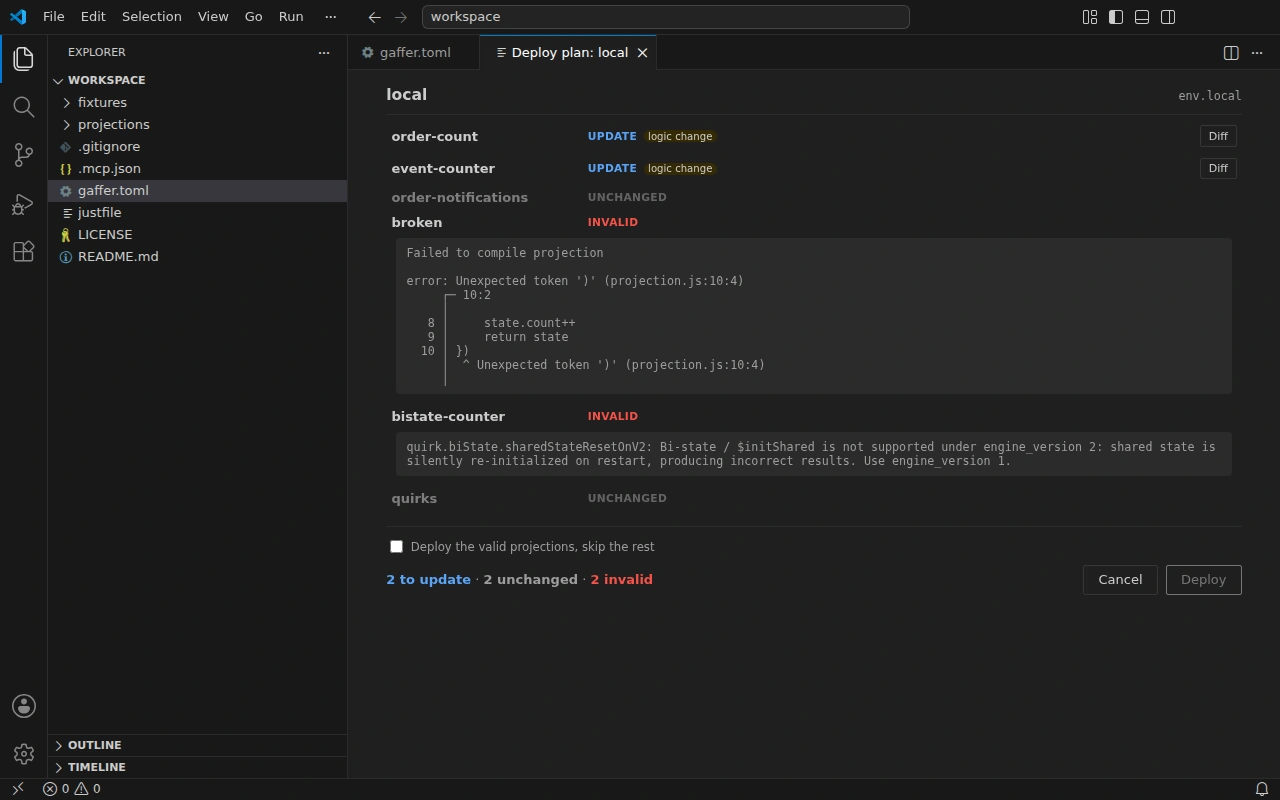
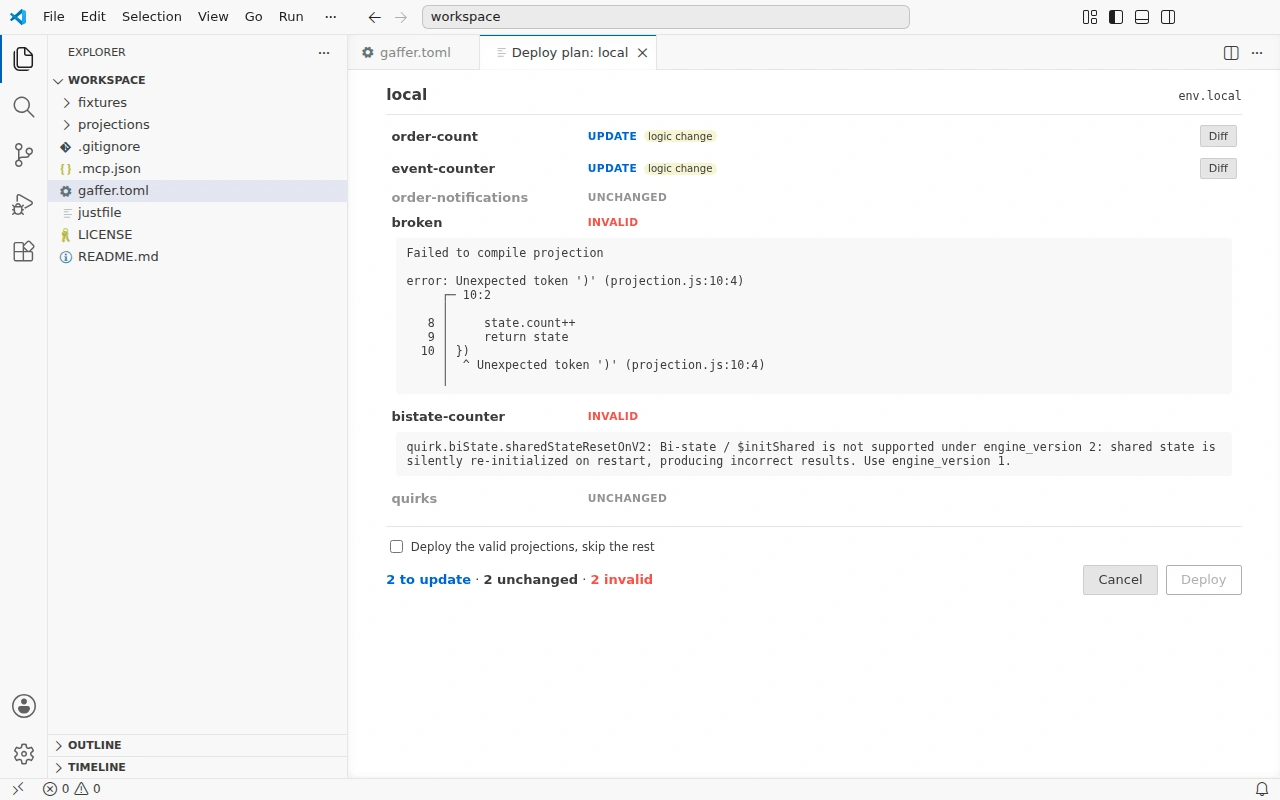
Deploying is confirmed natively, front-loading production. The confirm tier follows the target: silent for non-production with no rebuild, a modal accept when production or a rebuild is involved, and typing the environment name for a production rebuild. A blocked plan can’t deploy until it’s fixed. Off production, a checkbox deploys the valid projections and skips the rest. The apply streams each projection’s result into the plan in place, then a summary.
The summary appears above bare-key [env.name] headers. An environment declared with a quoted key ([env."my env"]) has no summary line.
Per-projection status
Section titled “Per-projection status”Each [[projection]] header carries a row of small dots, one per environment in the order they appear in the file. A solid dot is a known state: green in sync, orange needing attention (drifted, local ahead, changed externally, or not deployed), red faulted or invalid. The other shapes mean there’s no reading yet: an open ring needs sign-in, a crossed ring couldn’t be read, and a faint dot is still loading.
Hovering the header lists those environments one per line, each with its drift verdict and runtime state (running, stopped, aborted, or faulted). An environment that needs sign-in or couldn’t be read shows that reason in place of the verdict; the Sign in action lives on the [env.<name>] block above. Like the environment summary, this is read-only, reads on open and save, and stays current the same way.


Projection actions
Section titled “Projection actions”Each [[projection]] header also carries a Manage… lens that opens a menu of actions for that projection, grouped by environment. Every action targets an environment, so the lens appears only once the config declares at least one. Each environment is a heading with its actions beneath, in the order they’re declared in gaffer.toml, the default one labelled.
Deploy opens the deploy plan for just this projection against the chosen environment, in the same editor-tab webview as the whole-project Deploy lens, scoped to the one projection. Review the plan, then deploy it behind the same native confirm. A single-projection plan resolves its own change (create, update, or recreate), so a rebuild from zero is bundled into this one action rather than needing a separate trigger.
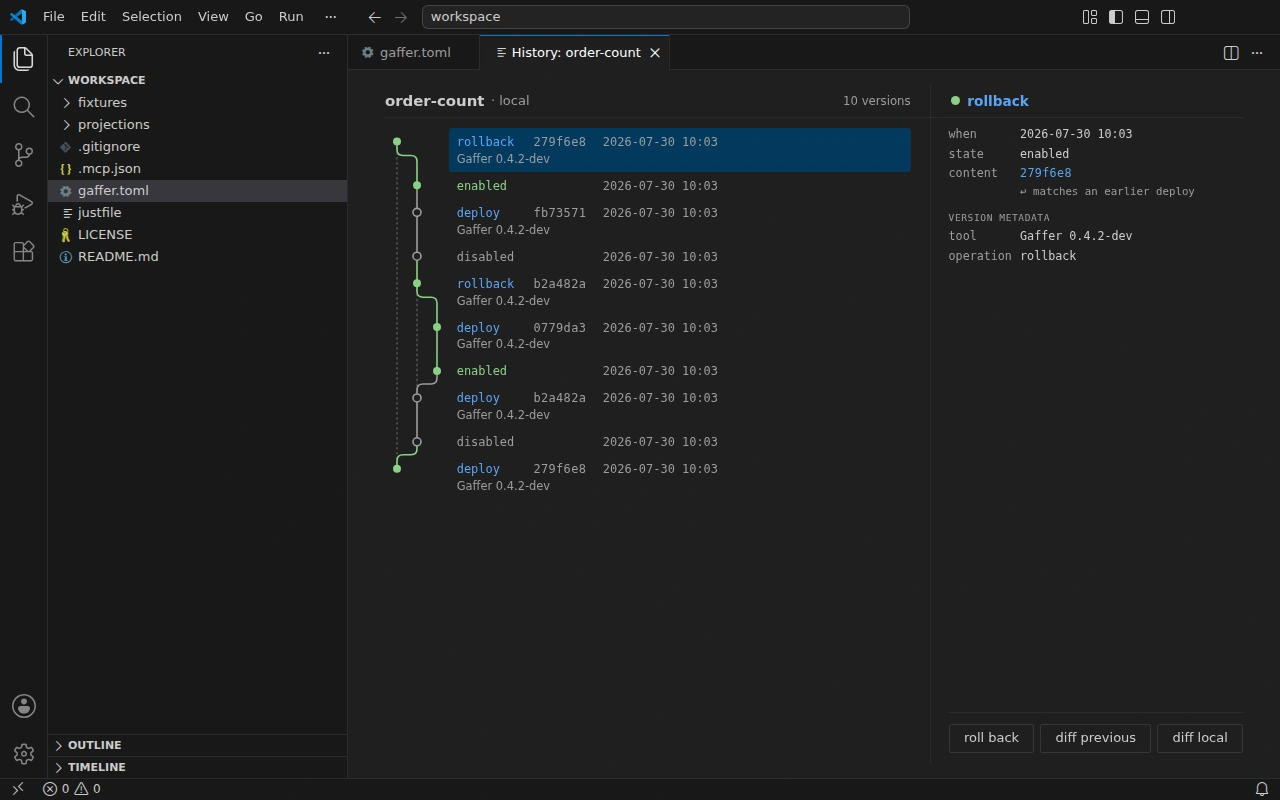
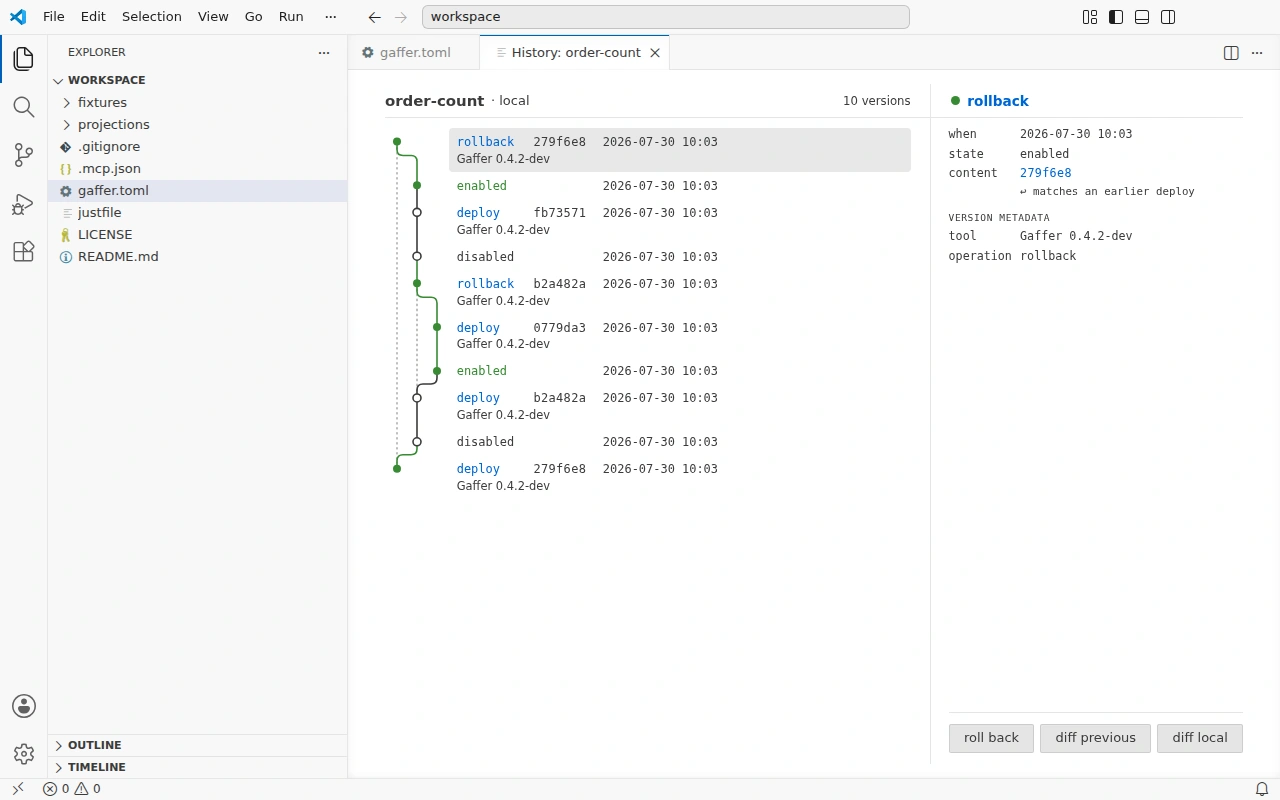
History opens the projection’s deploy timeline on the chosen environment in an editor tab, newest first. Each version carries its operation, content hash, actor, and time, drawn with the same graph as gaffer history in the terminal. The graph reads run state as a node (enabled, disabled, or deleted), detours the spine into a lane for a revert, and marks a terminus where a recreate began. Selecting a version opens its detail beside the timeline, where its actions live: diff it against the previous version, diff it against your local source (both open the diff editor), or roll back to it. Rolling back rewrites the live query to that version behind a native confirm - silent off-production, a modal accept on production. The state is kept and your local files are left untouched, so they show as drift until you update them.
Diff against deployed opens VS Code’s diff editor with the projection’s local source against what’s deployed on the chosen environment. You see exactly what a deploy would change. Both sides are read-only, and the diff never deploys.
If the projection isn’t deployed to that environment yet, the extension says so rather than diffing against an empty file. If the environment needs authentication, the action offers to sign in first. See Authentication.
The operate verbs act on the running projection. Pause stops it after a final checkpoint, and Resume restarts it from the last checkpoint. Abort stops it without a final checkpoint, so a later resume reprocesses from the last checkpoint written. Delete removes it along with its state and checkpoints; if the projection emitted streams, deleting asks whether to remove those too. The menu offers Pause while a projection is running and Resume while it’s stopped; Abort appears only while it’s running.
Each environment heading notes its status. One that needs authentication shows a single Sign in in place of the actions, since none can run until you’re signed in. One whose status couldn’t be read shows a single Unavailable notice instead, since no action can run against an environment that isn’t reachable. The menu opens right away rather than waiting on status: an environment still being read shows a single Loading status… row, which resolves into its actions in place once the read lands, so there’s no need to close and reopen.
The menu also lists only the actions your installed gaffer can run. The extension updates itself from the marketplace, while the CLI is installed separately, so an extension can be newer than the gaffer it drives. An action the CLI doesn’t support is left out rather than offered and then failing. If none of them are supported, the environment shows a single Unsupported notice, and the Manage… action disappears entirely when no environment has anything available. Updating the CLI restores them; see Install.
Because these change live state, they confirm before running, in tiers that match gaffer’s other surfaces. A non-production, reversible verb runs straight away. A production verb, or an irreversible one, asks you to confirm. Deleting on a production environment asks you to type the projection’s name. The result is reported as a notification, and an environment that needs authentication offers to sign in first.
Authentication
Section titled “Authentication”When you debug against an environment that uses OAuth and you haven’t signed in yet, the run stops and the extension shows a Sign in action. It opens a terminal running gaffer auth --env <name>. You sign in through the browser once, and the stored token refreshes automatically for later runs.
The token is kept in your OS keyring where one is available (macOS Keychain, Windows Credential Manager, Linux Secret Service), so nothing prompts for a passphrase. On a host without an OS keyring (a remote or container session), the extension manages an encrypted-file keyring for you. It generates a passphrase, stores it in VS Code’s secret storage, and passes it to gaffer, so sign-in and later runs work without prompting. This store is isolated to the extension (kept under keyring-vscode), so its generated passphrase never locks the store a manual terminal gaffer uses. On such a host the CLI keeps its own default store: gaffer auth in a terminal signs in there (prompting for a passphrase, or taking GAFFER_KEYRING_PASSWORD), independently of the extension.
State inspection
Section titled “State inspection”A dedicated Gaffer panel opens at the bottom of the editor when a session starts. It has three views, two visible at any moment:
- Status: connection phase (connecting / catching-up / caught-up / disconnected), total events processed, a count of distinct runtime quirks seen, and a skipped-by-reason rollup. Hidden while paused at a breakpoint. If a run drops on a connection failure, the reason appears in this panel and as a notification.
- Step: the event that triggered the current pause, plus a diff of state before and after the handler ran. It also lists what the handler produced as it ran: logs, emitted events, and any runtime quirks that fired. Visible only while paused.
- State: current
state, thenresult(V1 transformed state, V2 post-handler state), then shared state (for biState projections), then per-partition slices. Always visible.


Autocomplete for projection builtins
Section titled “Autocomplete for projection builtins”A bundled TypeScript server plugin injects projection-runtime types into any .js file that shares a workspace root with a registered projection. You get autocomplete and inline docs for fromAll, fromStream, fromCategory, when, emit, linkTo, partitionBy, foreachStream, and the rest of the API.
The plugin doesn’t add a .d.ts to your project. Types apply at the tsserver-project level. Disable via gaffer.injectProjectionTypes if you don’t want it touching loose JS files in projection workspaces.
MCP integration
Section titled “MCP integration”The extension auto-registers gaffer’s MCP server with VS Code’s MCP framework. AI assistants that consume VS Code’s MCP providers (GitHub Copilot Chat, others) pick up gaffer’s scaffolding / validation / debugging tools without any manual config.
See MCP for the tools and resources gaffer exposes, and for connecting non-VS-Code clients.
Configuration
Section titled “Configuration”| Setting | Default | What it does |
|---|---|---|
gaffer.command | ["gaffer"] | Argv used to invoke gaffer. User scope only. Workspace settings are ignored as defence against hostile workspaces. |
gaffer.debugPort | -1 (auto) | DAP server port (loopback only). -1 lets the OS pick a free port and the editor reads it back from the CLI on connect. |
gaffer.injectProjectionTypes | true | Inject projection-runtime types via the tsserver plugin. Disable to keep non-projection JS clean. |
gaffer.cliUpdateNotifications | true | Surface a status bar prompt when a newer gaffer CLI is on npm. The Never ask option on the prompt flips this to false. |
Commands
Section titled “Commands”| Command | Invoked via | What it does |
|---|---|---|
Gaffer: Init | Command palette | Bootstrap a gaffer project in the current workspace folder (runs gaffer init). |
Gaffer: Scaffold | Command palette | Add a new projection. Prompts for path, source, partition, an emit example, and engine version. Runs gaffer init first if no gaffer.toml is present. |
Scaffold Projection Here | Explorer right-click on a folder | Same wizard as Scaffold, but the new file lands in the clicked folder and prompts only for the file name. |
Gaffer: Debug | CodeLens or command palette | Launch the projection with the debugger attached. Lens uses the projection at the cursor; palette prompts for a projection and source. |
Gaffer: Debug from... | CodeLens | Pick a source (a fixture or a configured environment) and launch with the debugger attached. |
Gaffer: Stop | CodeLens or command palette | Stop the running session. |
Gaffer: Sign In to Environment | CodeLens | Open a gaffer auth --env <name> terminal for an environment that needs authentication. |
Gaffer: Projection Actions | CodeLens | Open the per-projection action menu, grouped by environment: deploy this projection, diff local against what’s deployed, view its deploy history, and the operate verbs. |
Gaffer: Deploy Plan | CodeLens | Open the deploy plan for the whole project against an environment: review the gaffer deploy --dry-run plan in an editor tab, then deploy from it. |
Gaffer: Projection History | CodeLens | Open a projection’s deploy-history timeline against an environment in an editor tab: diff any version against the previous one or local, and roll back to it. |
Telemetry
Section titled “Telemetry”The extension collects anonymous usage telemetry by default and respects VS Code’s telemetry.telemetryLevel setting. The first-run notice on the first activation has a Disable button that opts out permanently for that install. See the telemetry notice for what’s collected.